

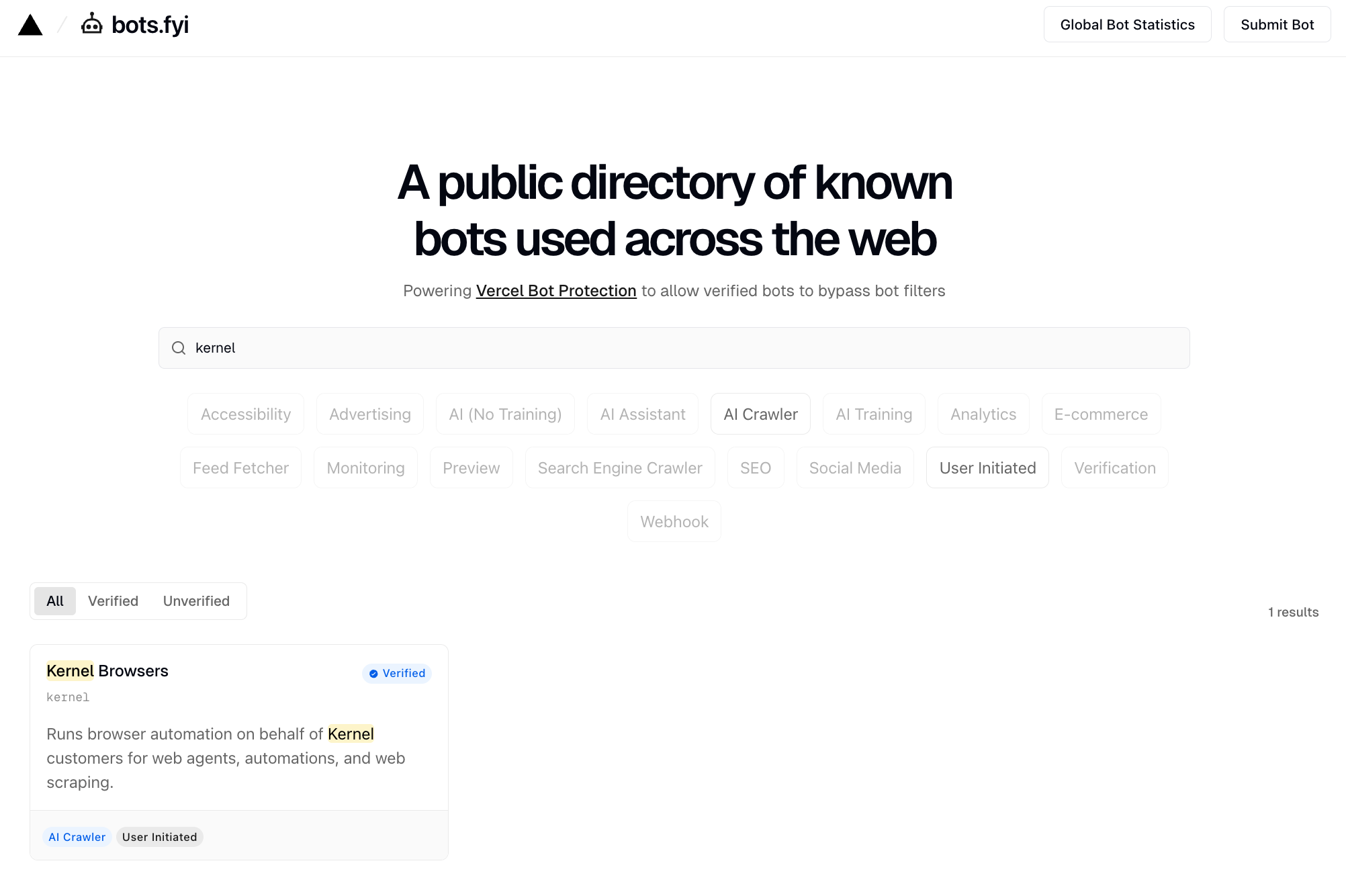
Web Bot Auth is quickly becoming the standard way for agents to establish identity. That’s why we’ve partnered with Vercel to support Web Bot Auth on Kernel. Kernel on Vercel's public directory of known bots used across the web You can now cryptographically sign browser requests, so your agents can prove who they are to services like Vercel.

How it works

Web Bot Auth works via a Chrome extension that intercepts all outgoing HTTP requests and adds cryptographic signature headers:
  • Signature: The RFC 9421 signature of the request
  • Signature-Input: Metadata about how the signature was created
  • Signature-Agent: URL that points to your key directory
Platforms like Vercel or other hosting providers can verify these signatures against your public key, confirming that the request came from your authenticated agent.

Quick Start with Test Key

The fastest way to get started is using a test key, which works with this test verification site.

1. Build the extension

Use the Kernel CLI to build the Web Bot Auth extension:
kernel extensions build-web-bot-auth --to ./web-bot-auth-ext --upload my-web-bot-auth
The build command requires Node.js and npm to be installed on your system.

2. Create a browser with the extension

# Create a browser with the web-bot-auth extension
kernel browsers create --extension my-web-bot-auth

# The command outputs the browser ID and live view URL
# Open the live view URL in your browser, then navigate to:
# https://http-message-signatures-example.research.cloudflare.com/

3. Verify it’s working

Navigate to the test site to verify your signatures are being accepted:This site validates requests signed with the RFC9421 test key and shows whether the signature was verified successfully.

Using Your Own Keys

For production use, you’ll want to use your own signing keys instead of the test key.

1. Generate an Ed25519 key pair

Create a JWK file with your Ed25519 private key. The key must include both the public (x) and private (d) components:
my-key.jwk
{
  "kty": "OKP",
  "crv": "Ed25519",
  "x": "YOUR_PUBLIC_KEY_BASE64URL",
  "d": "YOUR_PRIVATE_KEY_BASE64URL"
}
See web-bot-auth documentation for tools to generate Ed25519 key pairs.

2. Host your public key

For websites to verify your signatures, you need to host your public key at a well-known URL. Create a key directory at:
https://yourdomain.com/.well-known/http-message-signatures-directory
The directory should contain your public keys in JWKS format:
{
  "keys": [
    {
      "kty": "OKP",
      "crv": "Ed25519",
      "x": "YOUR_PUBLIC_KEY_BASE64URL",
      "kid": "YOUR_KEY_ID"
    }
  ],
  "purpose": "your-bot-purpose"
}

3. Build with your key and hosted key directory

kernel extensions build-web-bot-auth \
  --to ./web-bot-auth-ext \
  --key ./my-key.jwk \
  --url https://yourdomain.com/.well-known/http-message-signatures-directory \
  --upload my-web-bot-auth

4. Register with Vercel and other Web Bot Auth-aware directories (optional)

If you want Vercel-protected sites to recognize your agent, you can register your key directory with Vercel. Kernel is officially listed in the Vercel directory.

References